

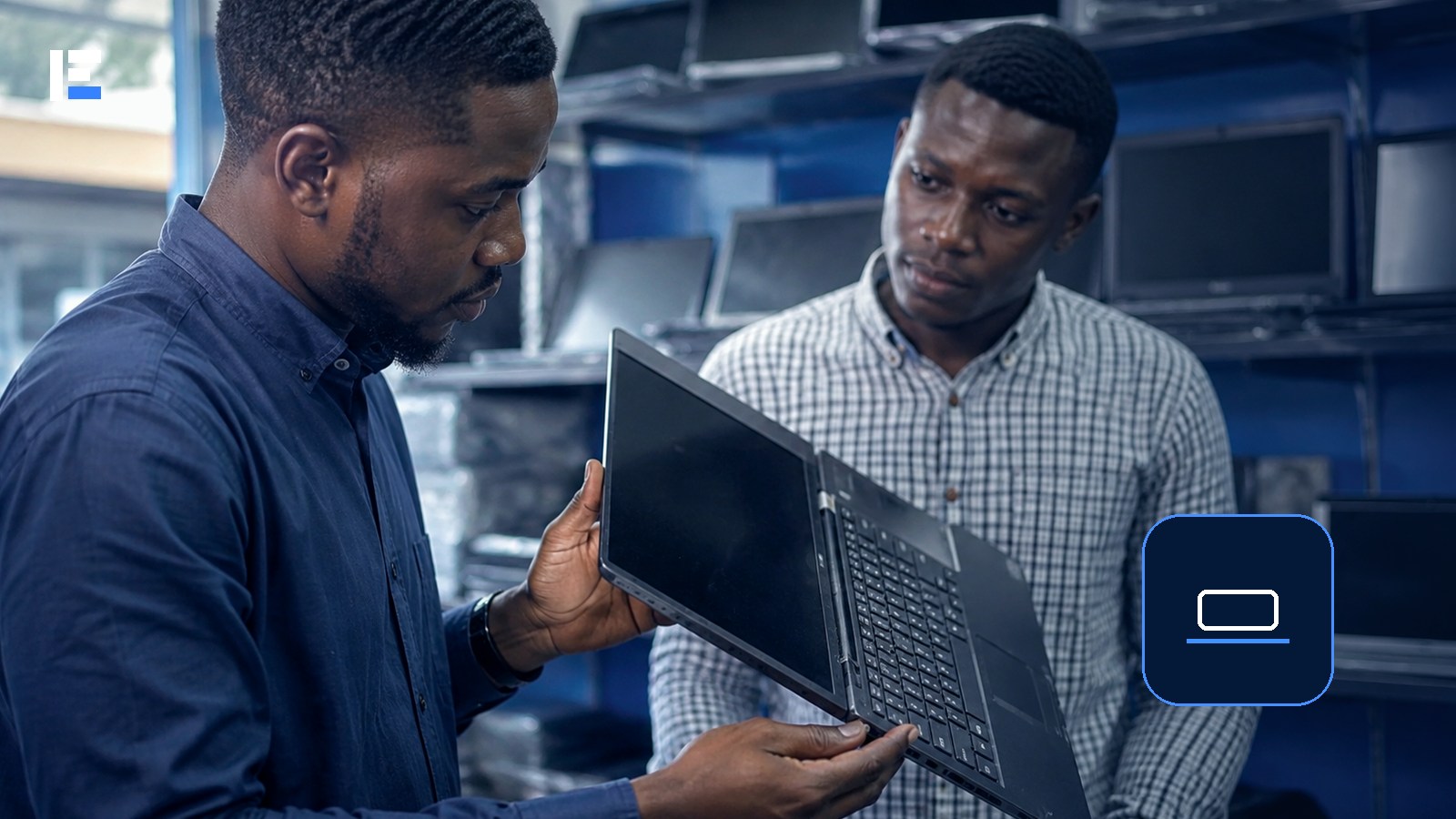
The laptop looked immaculate — clean case, no scratches, battery showing 100%. Two weeks in, it died mid-workday and wouldn’t hold a charge past thirty minutes. The outside told a story the battery health report never got to correct, because nobody checked it before paying.
A good used laptop can genuinely outperform a very cheap new one — but only when the hardware, software support, and ownership history are actually checked. A clean case is not proof that the battery, storage, or motherboard is healthy underneath.
Start With the Actual Job It Needs to Do
Basic browsing and documents need far less power than development, design, video editing, or engineering software. Check the real requirements of your main software before comparing machines on paper.
Check Windows Support Before Anything Else
Microsoft ended standard support for Windows 10 on October 14, 2025. A used Windows laptop needs checking for official Windows 11 compatibility — or another genuinely supported OS path. Requirements include a compatible processor, Secure Boot capability, and TPM 2.0. Use Microsoft’s PC Health Check tool directly. A seller’s claim that Windows 11 was “forced” onto unsupported hardware is not the same thing as official support — that gap becomes your problem later, not theirs.
Physically Inspect Before You Trust the Case
- Cracks, loose hinges, or any sign of liquid damage
- Every key, the touchpad, webcam, microphone, speakers, and headphone socket
- USB, HDMI, charging, and network ports, all of them
- Solid-colour screens to catch bright spots, dead pixels, or uneven backlighting
- Unusual fan noise or excessive heat during normal use
Actually Check the Battery, Not Just the Percentage
A battery can show 100% while holding a fraction of its original capacity — exactly what happened in the opening story. Ask for the operating system’s battery health report. Test the laptop away from the charger, and confirm the charging port doesn’t disconnect when the cable moves even slightly.
Verify Storage and Memory Match What You Were Told
An SSD gives a meaningfully better everyday experience than a mechanical hard drive. Check the actual capacity, available space, and drive health. Confirm the installed RAM genuinely matches what the seller advertised — and whether it can even be upgraded later.
Rule Out Locks and Unclear Ownership
Make sure the device isn’t tied to an employer’s management system, protected by an unknown firmware password, or linked to an account the seller can’t actually remove. Get a receipt with the serial number and seller details — not a verbal promise.
Never Trust the Existing Install With Your Accounts
After purchase, back up any legitimate files you want, wipe the storage, and install a supported OS from an official source. Update the system and drivers fully before adding any banking, email, or work credentials — you have no idea what the previous owner left behind.
Six Red Flags Worth Walking Away From
- The seller refuses to allow basic testing before you pay
- A missing or mismatched serial number
- An unknown BIOS or firmware password
- A swollen battery, bulging case, or lifting trackpad
- Only an unsupported OS with no realistic upgrade path
- A price far below comparable machines with a vague ownership story
Topic hub: Explore more in Technology Buying Guides for Nigeria.
Buy the condition and the support path, not just the processor name on the sticker. A used laptop is a genuinely good deal when it passes the physical tests, supports secure current software, holds a real charge, and comes with enough documentation to actually reduce your risk — not just look clean in a photo.